Worktrees
Find every linked git worktree in your home folder, see which ones are merged or stale, and delete them without losing work by accident.
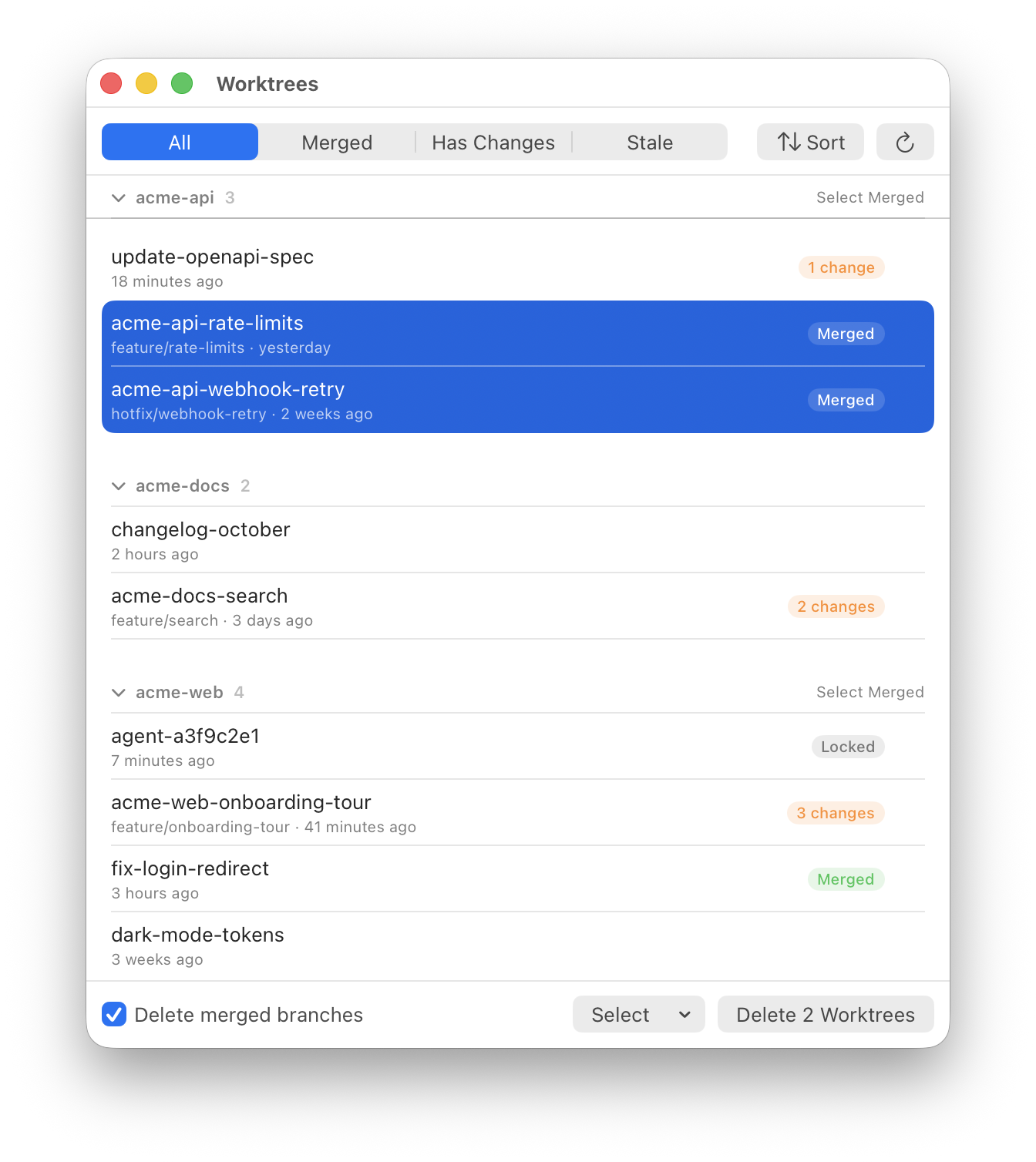
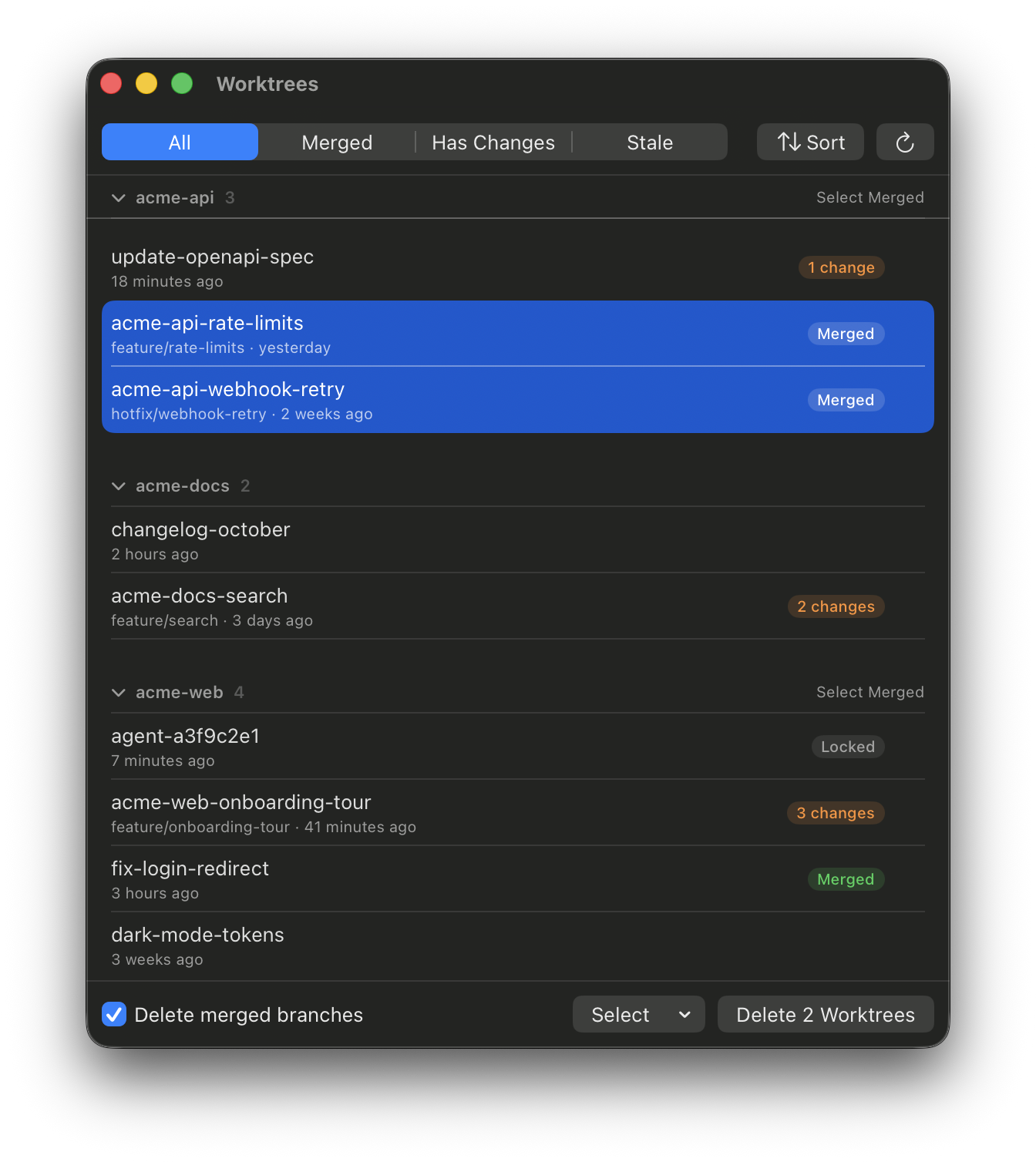
Coding agents like Claude Code create a git worktree for each task, and they add up fast. Choose Worktrees… in the menu to open a window that lists every linked worktree in your home folder, grouped by repository.
How Devbar finds them
Devbar scans only while the window is open, and again each time you open it. It walks your home folder for git repositories, skipping ~/Library, hidden folders, and build and dependency folders, then asks each repository for its worktrees with git worktree list. A worktree inside a hidden folder, such as .claude/worktrees, is still found through its repository.
Each row shows when the worktree was last used, based on the newest change to its folder or its git state. Checking for uncommitted changes uses git status with optional locks off, so the scan never counts as a use.
Pills
| Pill | Meaning |
|---|---|
| Merged | Merging the branch into the default branch would change nothing. This covers regular, rebase, and squash merges. |
| 3 changes | The worktree has uncommitted changes, with how many files. |
| Locked | The worktree is locked. Claude Code locks worktrees while an agent is running in them. |
| Missing | The folder is gone, but git still has a record of it. |
The default branch is the main checkout’s branch and origin/HEAD, so a branch that was merged on GitHub counts as merged even when your local branch is behind.
Filter, sort, and select
The bar at the top filters to All, Merged, Has Changes, or Stale (unused for 7 days and not locked). Sort by recent use or by name, and press ⌘R to scan again. Click a repository’s header to collapse it.
Rows select like any Mac list: click, ⌘-click, ⇧-click, or ⌘A. The Select menu picks rows for you: merged, no changes, missing folders, agent worktrees (Claude Code’s agent-<id> folders), or ones older than a day, week, or month. Each repository header also has Select Merged.
Selections never include locked worktrees, and actions only apply to rows you can see, so nothing in a collapsed section or hidden by a filter is touched. Press Space to preview the selected folder with Quick Look.
Deleting
Delete the selection with the Delete button, the Delete key, or ⌘⌫. You can also swipe a row, use the trash button that shows on hover, or right-click for Show in Finder, Copy Path, and Delete.
Devbar always asks first. The confirmation names the branches that will be deleted, warns when uncommitted changes will be lost, and points out locked worktrees.
Deleting runs git worktree remove --force --force, which removes the folder, including uncommitted changes, and git’s record of it. With Delete merged branches on, which is the default, Devbar checks a merged branch once more and deletes it with git branch -D. Branches that aren’t merged are always kept.