AI quota
See how much of your Codex, Claude, and Muse limits you have left, and when each window resets, right from the menu bar.
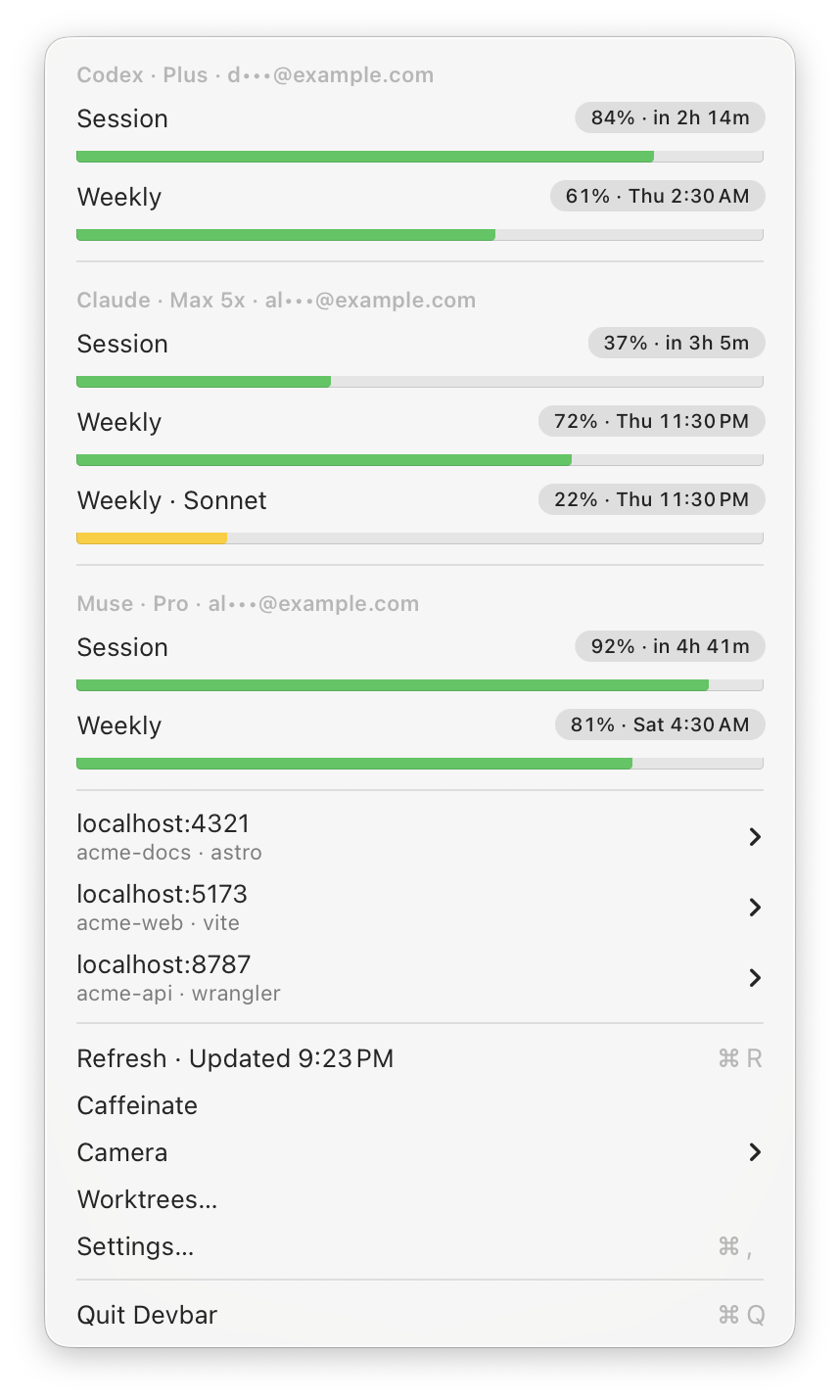
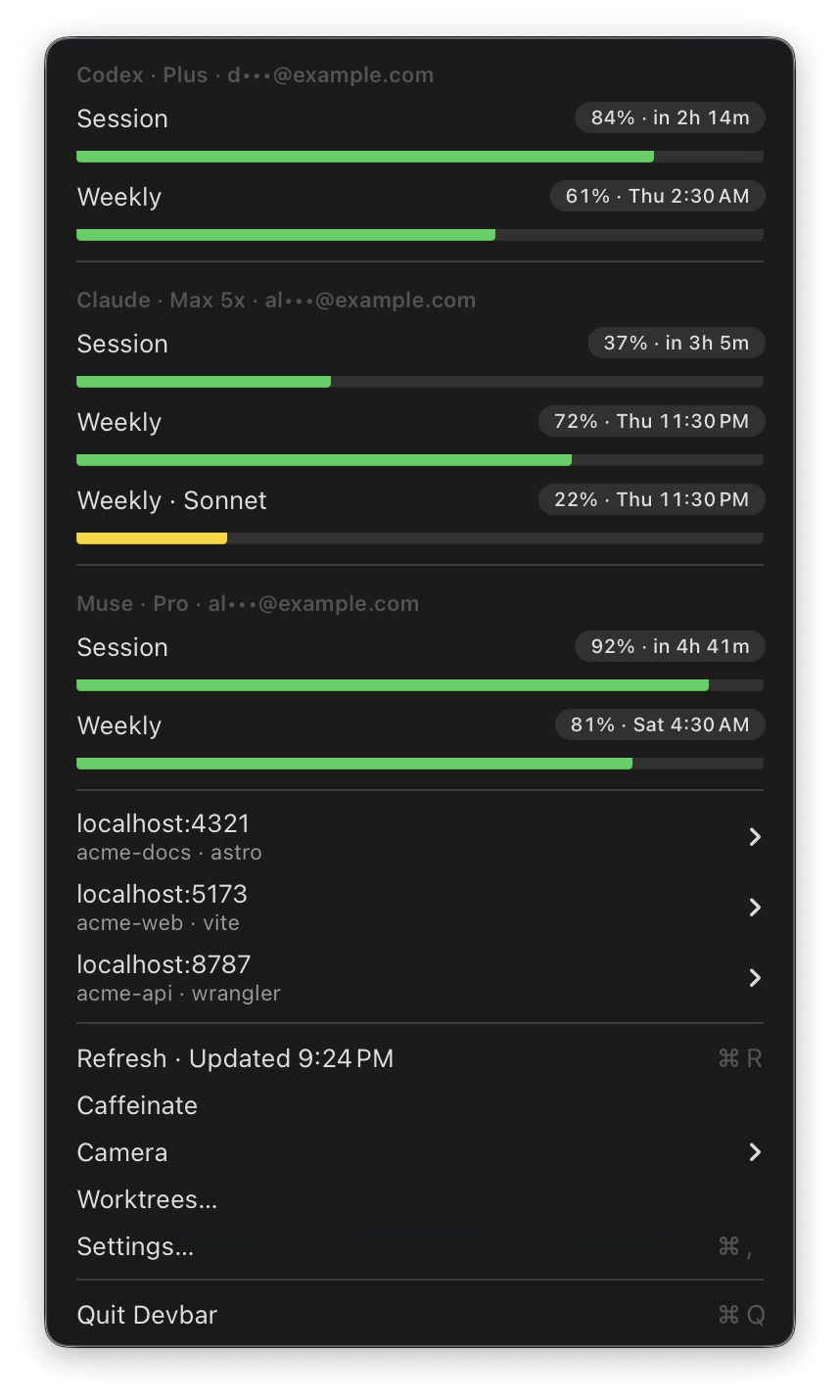
The top of the menu has a section for each AI tool you use. Each section shows your plan and a masked sign-in email (like he•••@example.com), so you can tell accounts apart without showing the full address in a screenshot.
Under the header, each quota window gets a bar and a badge with the percentage left and when it resets. The bar turns yellow below 25% and red below 10%. A tool you haven’t used lately shows Idle.
Supported tools
| Tool | What Devbar shows | Where the login comes from |
|---|---|---|
| Codex | Session and weekly limits | ~/.codex/auth.json, written by the Codex CLI |
| Claude | Session and weekly limits, per-model weekly limits, and monthly spend when your plan has them | Claude Code’s Keychain item, or ~/.claude/.credentials.json |
| Muse | Session and weekly limits | ~/.config/muse/auth.json or the Keychain |
If you’ve signed in to Claude Code from more than one place, such as the terminal and the Claude desktop app, Devbar uses the newest valid login.
Refreshing
Devbar refreshes every 10 minutes and whenever you open the menu. Choose Refresh (⌘R) to check right away; the item shows when the last refresh finished.
If a refresh fails for a moment, like a network blip or a rate limit, Devbar keeps showing the last numbers it had. If the login itself is gone or expired, the section says so and tells you how to sign in again, for example by running claude.
Turning a tool off
Each tool has a switch under Providers in Settings. A tool that’s off isn’t shown and isn’t checked.